Task Report
Last update: 11 months ago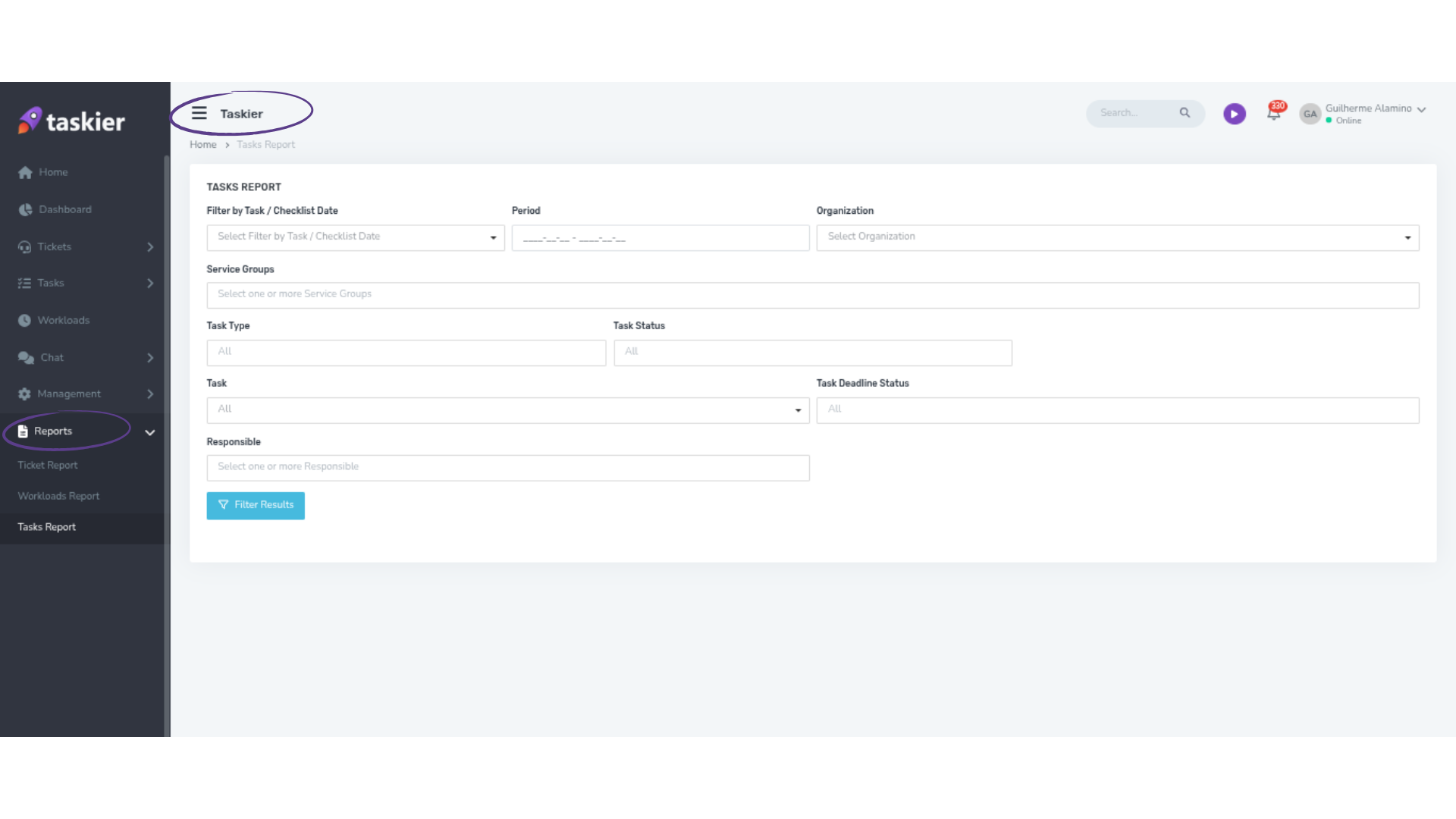
What is it for?
The Task Report provides a detailed and organized view of the tasks and checklist items registered in the system.
With it, you can track activity execution, identify bottlenecks, measure productivity, and assess delivery efficiency.
Why should it be performed?
It is essential for evaluating:
- Team and assignee performance;
- Compliance with planned deadlines;
- Workload distribution;
- And quality in task execution.
Additionally, the report supports prioritization and capacity management decisions, offering a consolidated view of task progress.
Accuracy Calculation
Accuracy is calculated based on the Mean Absolute Percentage Error (MAPE).

Actual SLA = actual value (e.g., actual handling time)
Planned SLA = expected or estimated value
📊 Practical Example
Case 1:
Planned SLA: 30 minutes
Actual SLA: 40 minutes

Interpretation: the actual time exceeded the planned time by 25%, indicating a delay relative to the SLA.
Case 2:
Planned SLA: 40 minutes
Actual SLA: 30 minutes

Interpretation: the actual time was 33.33% lower than planned, indicating a gain in efficiency relative to the SLA.
Case 3:
Planned SLA: 40 minutes
Actual SLA: 40 minutes

Interpretation: the actual time matched the planned time exactly, meaning there was no variation relative to the SLA.
How should it be performed?
| Field | Action |
|---|---|
| Filter by Task / Checklist Date | You can select dates such as task creation, start, due, completion, archived, tasks without due date, checklist item due, or checklist item completion. |
| Period | A maximum period of 3 months can be selected. |
| Organization | Only organizations the user belongs to will appear. |
| Support Group | Only support groups the user belongs to will appear. |
| Task Type | Only task types from the support groups the user belongs to will appear. |
| Task Status | Only task statuses from the user’s support groups will appear. |
| Task | Only tasks from the user’s support groups will appear. |
| Task Deadline Status | You can select one or more options (Overdue, On time). |
| Checklist Item Status | You can select one or more options (To do, Completed). It only appears when one of the checklist date filters (due or completion) is selected. |
Available Columns
| Column | Description |
|---|---|
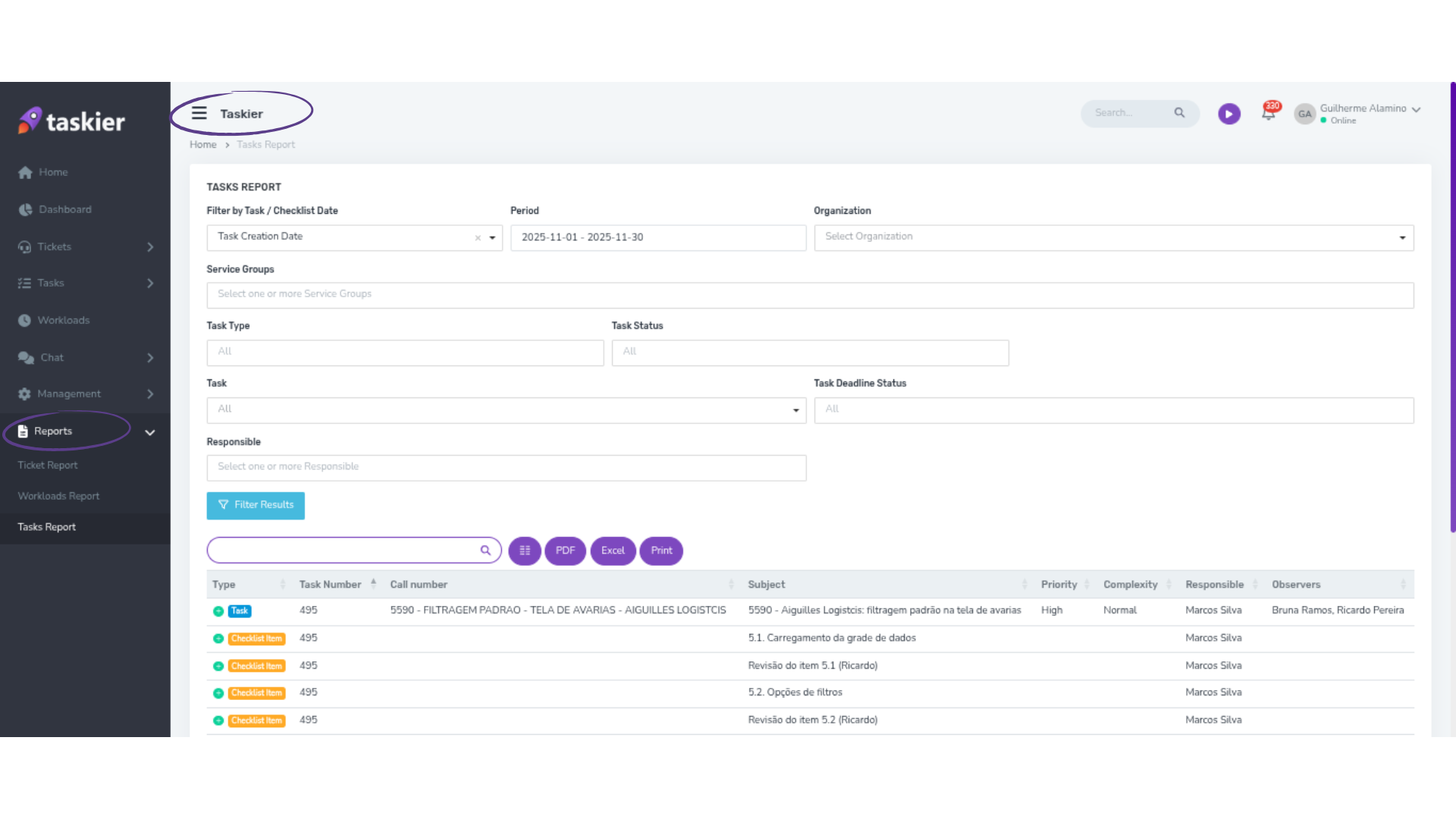
| Type | Indicates whether it is a Task or a Checklist Item |
| Task Number | The number generated when the task was created |
| Ticket Number | The ticket linked by the user during task creation |
| Title | The title chosen by the user for the task or checklist item |
| Priority | The priority level selected by the user (e.g., Urgent, High, Normal) |
| Complexity | The complexity level defined (e.g., Low, Normal, High) |
| Assignee | Name of the user assigned to the task or checklist item |
| Observers | Users monitoring the progress of the task |
| Organization | The company linked to the task |
| Support Group | The support group selected for the task within the organization |
| Task Type | The task type selected (e.g., Development, Documentation, Meeting) |
| Estimated Time | Total planned time to complete the task (in hours and minutes) |
| Workloads | Time spent on task execution (in hours and minutes) |
| Start Date | The date when the task is expected to start |
| Due Date | The planned completion date for the task or checklist item |
| Completed On | The actual completion date of the task |
| Current Status | The current state of the task (e.g., To do, Blocked, In progress) or checklist item (e.g., To do, Completed) |
| Time in Current Status | Time the task has remained in the same state (e.g., 8 minutes ago, 3 hours ago, 8 days ago, 2 months ago, 1 year ago) |
| Completed Late? | Indicates whether the task was completed after its due date (yes/no) |
| Has Checklist? | Indicates whether the task includes a checklist (yes/no) |
| Number of Items | Total checklist items within the task |
| Completed Items | Number of checklist items marked as completed |
When should it be performed?
The generation and analysis should be performed:
- Regularly (weekly, biweekly, or monthly);
- Or whenever it is necessary to review productivity and execution timelines.
Who should perform it?
Users authorized by the Subscriber with active permissions in the contracted plan.
Only these users will have access to the Task Report.
How much does it cost?
The feature is available starting from the Premium plan.
Where should it be performed?
You can access the Task Report through:
- Link: https://app.taskier.io/panel-agent/reports/tasks
- Go to the menu → Reports.
- Select the submenu “Task Report”.
We hope this explanation was helpful! If you have further questions, contact our support team at [email protected].